Configure and use the self-service portal
Important
Draft documentation
This content is a draft version of the SkyBill documentation and is subject to final review. Some information may be incomplete or inaccurate. Features, terminology, and procedures may change before the official release.
SkyBill provides portals for your tenants, landlords, brokers, and administrators to access their billing information online. These portals offer a convenient way for your customers to view invoices, payment history, meter readings, and other relevant data related to their utility services. Information presented on the portals is based on data stored in SkyBill, ensuring your customers have access to accurate, up-to-date information.
To grant portal access to a contact
Before giving portal access to a customer, ensure the contact card is created for that customer. The contact card contains the email address to which the portal invitation is sent. To learn more, see Contacts and Customers.
Select Search (Alt+Q)
 in the upper-right corner, enter Contacts, and then choose the related link.
Select the contact you want to grant access to the self-service portal.
On the Contact Card page, on the Communication FastTab check the Email field. SkyBill sends the invitation email to this address. The invitation email includes a link that allows the user to set up their portal password and access credentials.
On the Portal FastTab, in the Portal User Type field, select the type of the self-service portal that applies to your customer.
Note
There are four types of self-service portals available in SkyBill: Tenant, Landlord, Administrator, and Broker. In this article, we focus only on the tenant portal.
After you set up the Email and Portal User Type fields, select the Send Portal Welcome Email action.
On the Welcome to SkyBill page, you can review and adjust the email.
- Select Send email action to send the invitation email to the user.
Using the tenant portal
After receiving the invitation email, the tenant must select the link to create their login and password for the portal.
After the tenant completes this setup, SkyBill automatically records the login email in the Portal User E-Mail field on the Contact Card. This field remains empty until the tenant creates their account, and is not editable manually after the account is created.
After setting up their credentials, the tenant can access the portal at any time using their login email and password.
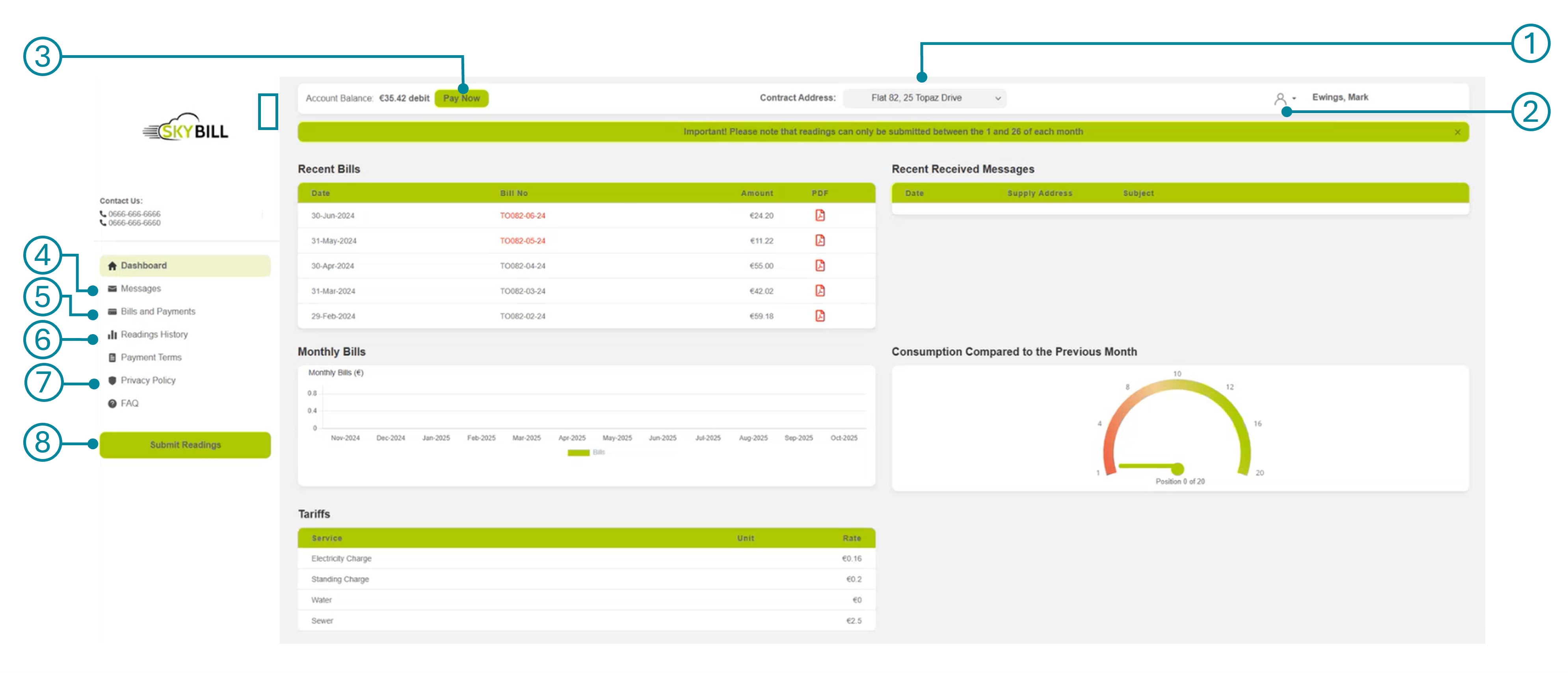
The dashboard displays the information described in the following table.
| No. | Area | Description |
|---|---|---|
| 1 | Contract Address | Displays the supply address linked to the tenant. If the tenant has multiple supply addresses, they are listed in the dropdown. The user can select the address to view the related information. |
| 2 | User Menu | Allows the user to view their profile details or log out. |
| 3 | Pay Now | Allows the user to pay their bills. The Pay Now button redirects the user to the payment page. This option becomes available after you configure SkyBill's integration with Stripe. |
| 4 | Messages | Allows a tenant to send a message to you. |
| 5 | Bills and Payments | Displays the list of bills and payment history for the supply address. If the tenant has more supply addresses, the list contains only the history applicable to the address defined in the Contract Address field. The tenant can download the invoices. SkyBill displays this information based on the customer ledger entries. |
| 6 | Readings History | Displays the history of meter readings for the supply address. The user can view different meter types, such as electricity, water, and gas, and review the readings for each year. |
| 7 | Standard Documents | Displays your standard documents: Payment Terms, Privacy Policy, and FAQ. You can add them as PDF or HTML on the Portal Setup page. [T1] |
| 8 | Submit Readings | Allows the tenant to submit their meter readings through the portal. |
Each tenant has their own access credentials to log in to the portal, and the data displayed in the portal is specific to each tenant. But the portal structure and functionality are the same for all your tenants. For example, the Privacy Policy document displayed in the portal is the same for all tenants.
Adjust portal appearance and settings
The portal is white-labeled. You can customize its appearance to match your company's branding. To do this, you need to modify the web.config file because the portal is an ASP.NET web application hosted in IIS. If the portal is hosted in Microsoft Azure, create and deploy it as an Azure App Service. In this case, the web.config file is included in the app and can be used to configure various settings.
The web.config file contains the address of the Business Central environment that the portal connects to. When a tenant accesses the portal, the portal reads the Stripe setup from the connected Business Central company and uses the corresponding Stripe keys configured in that environment.
Related information
Landlords and tenants
Design details
Enable online payments with Stripe
Set up SkyBill
Work with Business Central