Enable online payments with Stripe
Important
Draft documentation
This content is a draft version of the SkyBill documentation and is subject to final review. Some information may be incomplete or inaccurate. Features, terminology, and procedures may change before the official release.
Utility companies increasingly rely on digital payment solutions to streamline collections, reduce administrative work, and provide customers with a secure, convenient way to pay their bills online. To enable this, SkyBill integrates with Stripe, a leading global payment gateway.
Additionally, you can add the Pay Now button to the tenant portal, emails, or invoices to allow tenants to make payments directly from these channels. On the other hand, for customers who prefer bank transfers, the VBAN option makes it easier to reconcile their payments with the open customer ledger entries in SkyBill.
Stripe acts as an intermediary between your customers and your bank, securely handling all payment processing. It collects payments from tenants or landlords and transfers them to your company's account. This approach ensures compliance with payment security standards while providing a seamless billing experience for your customers.
In this article, you'll find how SkyBill connects to Stripe, how to configure your Stripe account, and how to test and manage payments processed through the Stripe integration. To learn more about this concept, see Payment gateways – the basics.
Enable Stripe as the payment processor
You have two options to enable Stripe as the payment processor in SkyBill. You can either have SkyBill company set up Stripe settings on your behalf, or you can set that up yourself.
To let the SkyBill company set up Stripe for you
SkyBill company, as a software vendor, is Stripe's partner. The default process for setting up Stripe in SkyBill uses the so-called connected account model.
- Contact SkyBill support team and request the email with the link to create a connected account.
- After receiving the email, you confirm that you are SkyBill's customer and that you are using SkyBill's platform. Choose the link in the email and enter the required data on the Stripe page.
- SkyBill company sets up all the remaining configurations in your SkyBill solution on your behalf.
Tip
The connected account model is available to both customers who already have a Stripe account and those who do not yet. To learn more, see Connect account types.
To set up Stripe yourself
If you prefer to set up Stripe yourself, start by creating a test environment for both Business Central and your self-service portal. This way, you can test the integration before processing real payments. Follow these steps in the test environments.
To set up Stripe as a payment processor in the SkyBill test environment
- Open the Business Central test environment and test company.
- Select Search (Alt+Q)
 in the upper-right corner, enter Billing Setup, and then choose the related link.
 - On the Billing Setup page, on the Gen. Info FastTab, in the Payment Processor field, select Stripe.
To test payments in development mode
- Select Search (Alt+Q)
in the upper-right corner, enter Stripe Setup, and then choose the related link.
- On the Developer FastTab, turn the Development Mode toggle on.
- Enter Stripe sandbox keys on the Developer FastTab. When you turn this mode on, SkyBill uses Stripe sandbox keys. To learn more, see Stripe API keys.
Warning
Never enter your live-mode Stripe keys in development mode. Stripe provides separate keys for testing and production. Using the live-mode keys in development mode might result to unintended charges. Don't keep your Stripe live mode keys on the General FastTab in your test environment. If your test environment is a copy of the production environment, clean the live mode keys in the General FastTab.
You can test payments in the self-service portal. The self-service portal always connects to a specific Business Central environment and company. This is configured through the web.config file. For testing purposes, set up a separate test self-service portal. This test portal should connect to your Business Central test environment, where you configure test Stripe keys. This approach ensures that you don't need to modify the web.config file each time you want to test changes. With separate test and production portal environments, each portal automatically uses the appropriate Stripe configuration from its connected Business Central environment.
To set up Stripe as a payment processor in the production environment
After testing is complete and you are ready to process real payments, repeat the previous steps in your production environment.
- Open the Business Central production environment.
- Select Search (Alt+Q)
in the upper-right corner, enter Billing Setup, and then choose the related link.
- On the Billing Setup page, on the Gen. Info FastTab, in the Payment Processor field, select Stripe.
To enter your live-mode Stripe keys
- Select Search (Alt+Q)
in the upper-right corner, enter Stripe Setup, and then choose the related link.
- Enter the Stripe keys on the General FastTab. You can find your live mode keys in your Stripe Dashboard.
Virtual IBAN
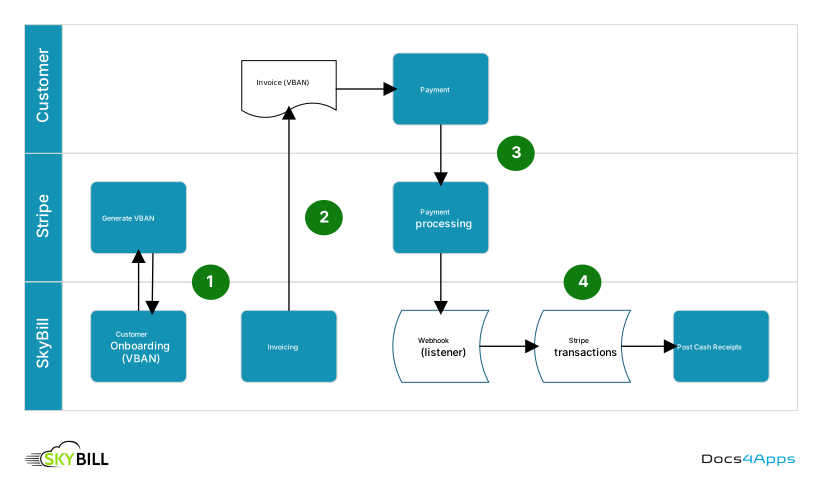
You can add a Virtual IBAN (VBAN) to your invoice. A VBAN is a Stripe-generated IBAN that is unique to each tenant. When the tenant makes a payment using the VBAN, Stripe automatically associates the payment with the correct customer. The payment information is then sent to SkyBill and appears on the Stripe Transaction List page as an incoming transaction. As a next step, the batch job automatically posts the incoming transactions. In the event of errors, transactions are not posted automatically and require manual intervention. You need to regularly monitor the Stripe Transaction List page to ensure that all payments are processed correctly.
Workflow
The following workflow corresponds to the previous diagram:
- VBAN is generated during the customer onboarding process. The information about the customer and the VBAN is exchanged between SkyBill and Stripe.
- After generating the invoice, SkyBill sends it to the customer with the VBAN included.
- The customer makes a payment, which is processed by Stripe and received by SkyBill via the webhook.
- The information about the transaction contains the VBAN. This information allows SkyBill to associate the payment with the correct customer. Based on that, the Post Cash Receipts batch job runs and automatically posts incoming transactions.
To learn more, see Virtual bank account numbers.
Pay Now button
You can include the Pay Now button in the invoice, email body, and the self-service portal. When a tenant selects the Pay Now button in the self-service portal, SkyBill redirects them to the payment gateway's secure payment page. There, the tenant enters their payment details and completes the transaction.
Tip
Technically, the Pay Now button is a call to the third-party payment processing company. SkyBill communicates with the payment gateway using API and webhooks. SkyBill contains the out-of-the-box integration with Stripe.
Related Information
Design details
Configure and use the self-service portal
Set up SkyBill
Calculate, create, and send customer invoices
Work with Business Central