Design details
Important
Draft documentation
This content is a draft version of the SkyBill documentation and is subject to final review. Some information may be incomplete or inaccurate. Features, terminology, and procedures may change before the official release.
The articles in this section explain the logic and background behind key SkyBill processes. They provide deeper context to help you understand how individual features work together across billing, metering, and contract management.
Design details are intended for users who want to go beyond the basic setup steps and gain insight into how SkyBill handles calculations, allocations, and integrations with Dynamics 365 Business Central. Understanding these design details helps you interpret system behavior, troubleshoot results, and apply the right configuration choices in complex scenarios.
Bulk meter point and consumption allocation
If the meter point has a value in the Bulk Meter Point No. field, SkyBill uses this value during contract calculations. It determines the total consumption for the entire building based on the meter point identified in the Bulk Meter Point No. and then applies charges to that specific meter point according to the tariff component setup. The tariff components determine whether to select Bulk Consumption Allocation or Bulk Difference Allocation and which allocation key to apply.
Contract calculation and posting process
When you launch the contract calculation process, SkyBill performs the following steps:
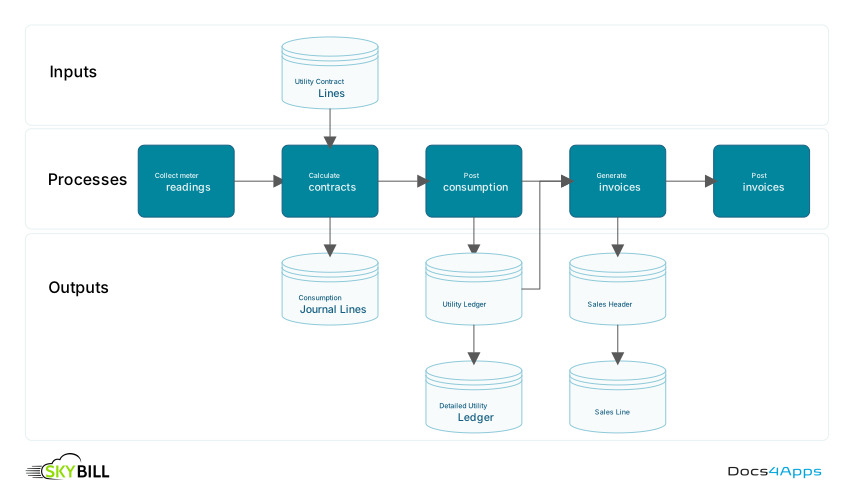
- SkyBill goes through all the contract lines, validates them, and makes calculations.
- The result of the calculation is stored in the journal in the form of the Cons. Journal Line. Some lines might contain warnings; you can correct them.
- When the lines are posted, SkyBill removes them from the journal and stores them in the Utility Ledger. Ledger entries are not editable. You'll need to create manual entries if you need any adjustments.
- The batch job generates sales invoices based on the ledger entries. The invoices consist of the sales header based on the contract (date, customer), and sales lines based on Utility Ledger Entries and Detailed Ledger Entries.
- Invoice posting finalizes the process.
Data uploads
In the articles about meters, meter points, and supply addresses, you find instructions for creating these infrastructure elements manually. However, most utilities import this data from their existing systems during SkyBill implementation. SkyBill includes data upload tools to speed up this process. You can use these same tools to import new elements or update existing ones.
The data upload tools import both data and the relationships between infrastructure elements. For example, SkyBill normally requires the move-in process to link a supply address to a customer. When you import data, you can set up this relationship directly in the import file. This eliminates the need to run the move-in process for each supply address individually.
In daily operations, you rarely create infrastructure elements manually. Most elements are uploaded in bulk using data upload tools.
To learn more about the data upload tools, go to How To: Migrate Data To / From System and How to: Bulk Data Upload
Integrations with CRMs
Many utilities use Customer Relationship Management (CRM) systems and integrate them with SkyBill. With the API available in SkyBill, you can integrate any CRM system that supports API-based integration. For some of them, like Salesforce, there are ready integrations available. When they onboard and manage tenants, they can trigger that process in the CRM system, and the integration creates the corresponding customer and contract in SkyBill.
An example of how the Skybill-CRM integration works is the portal invitation emails. In many cases, companies integrate the process described in To set up a portal for a contact into the CRM onboarding flow. These bespoke integrations are not part of the standard SkyBill functionality.
Integration with your company website
For some utility companies, especially the electricity suppliers, having a public-facing website where new customers can explore tariffs and sign up for services is essential. SkyBill supports integration with such company websites to showcase your tariff offerings directly to potential customers. You can configure the information displayed on the company website by setting up the tariff components and tariff lines.
On the Utility Tariff Component Card page, in the Short description and Long description fields, define the marketing content for your tariffs. To learn more, see Tariff Components. On the Utility Tariff Card page, you can define the information about your tariffs that SkyBill displays on the company website. For example, you can include some tariff lines and hide others. To learn more, see Tariff Lines. The difference between the company website and the customer and landlord portals is that the company website is public, while the portals are private and require authentication.
Note
Unlike the tenant and landlord portals, the company website is not part of SkyBill. You need to build this site and set up integration with SkyBill to use the functionalities described in this section.
Meter data integration and processing
SkyBill integrates with external systems to collect and process meter data throughout the billing lifecycle. The following diagram illustrates the complete process flow from data collection through validation and calculation to final payment collection, showing how external systems connect with SkyBill's core processing components.
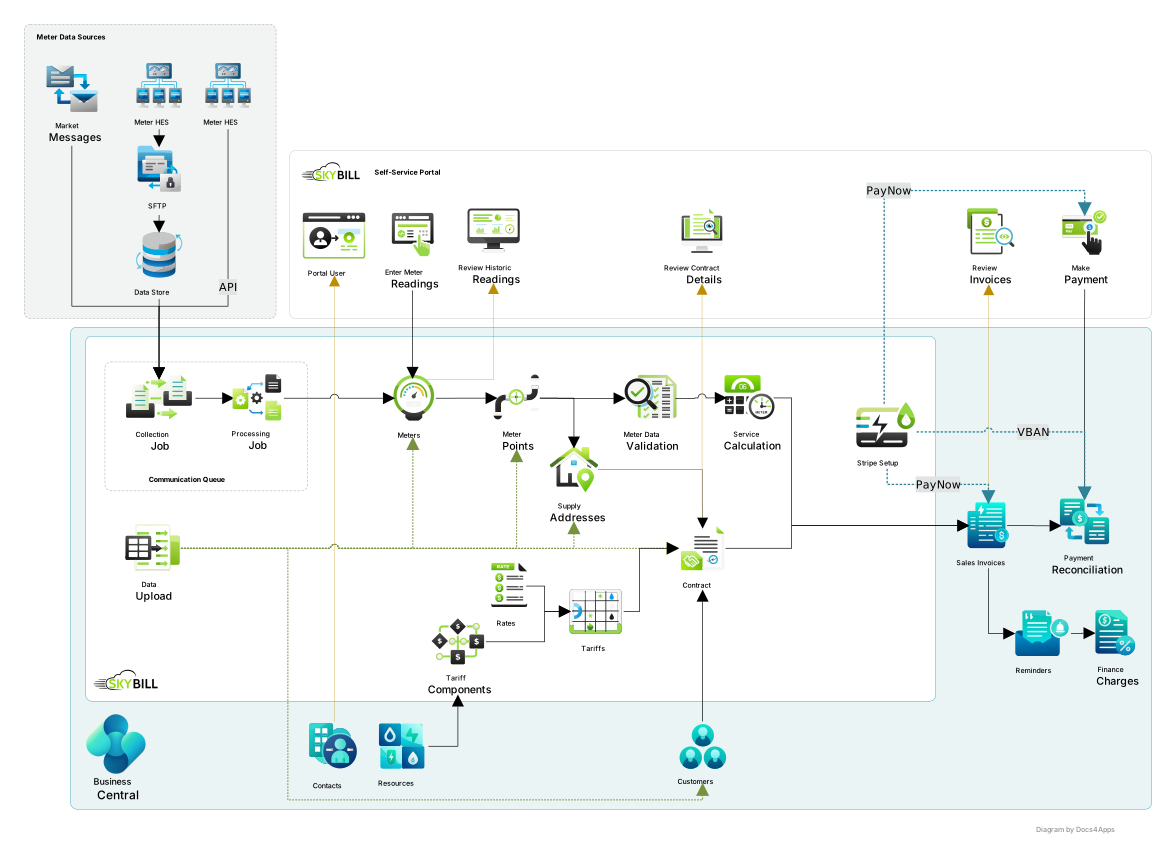
The process involves the following key components:
Meter Data Sources consists of different elements depending on the utility company:
- Meter Head-End System (Meter HES) is a third-party system that collects meter data and transfers it to SkyBill. The HES is not part of SkyBill but serves as a data source, providing meter readings, including consumption, temperature, and other measurements. You can transfer data from the HES to SkyBill through APIs or data file imports.
- Market Messages: In European utility markets, you can integrate with market messaging systems to receive meter readings. These market message systems support various data exchange purposes, and integration methods vary by market. Some of them use APIs while others use file-based transfers. In SkyBill, you can use market messages to transfer meter readings.
The Communication Queue acts as a staging area for incoming data. The typical meter data integration workflow consists of two jobs:
- Collection Job: This job collects files containing meter readings from external sources (FTP, SFTP, or API) and creates a record to store the file. The system stores the file content in a BLOB field within this record, along with a timestamp and status. After successful collection, the original file is either deleted or moved to an archive folder.
- Processing Job: This job retrieves unprocessed records from the Collection Job, reads the BLOB content, processes the data, and stores the values in the appropriate tables (such as the Meter Reading table). When processing is complete, the record is marked as finished.
This two-step approach makes it easy to trace failures in the data integration process. If a file doesn't arrive, there will be no record in the Communication Queue. If processing fails, you can examine the stored file content to identify issues with the file format or data quality, as the record is marked with an error status.
Tip
SkyBill partners with several Meter HES providers. If you don't have one, you can contact SkyBill support for recommendations.
Meter points without meters
In most cases, the meter point has one or more meters assigned to it. In some rare cases, a meter point can have no meters assigned to it. An example is street lighting. In this case, the meter point represents the connection to the specific street, and the utility company charges a fixed price, not based on the actual consumption.
Payment Reconciliation Journal
If the customer chooses to pay the invoice by bank transfer, all required payment details are included on the invoice. As a next step, you need to reconcile the payment when it arrives in your bank account. You can do this by using the Payment Reconciliation Journal. To learn more about how to use this journal, see Reconcile payments using automatic application.
Tariff lines
The Tariff Lines page lists all tariff lines created for each tariff. In practice, SkyBill users hardly ever visit this page. The default way to work with tariff lines is through the Utility Tariff Card page, where tariff lines are displayed alongside the tariff and other tariff settings. You can think of the tariff lines in the same way as the Posted Sales Invoices in Dynamics 365 Business Central.
Tariff lines are always created within a tariff. Each tariff line has the primary key that consists of three fields:
- Tariff Line No.
- Tariff Code
- Tariff Component Code. That's why you can never have a tariff line without a tariff.
Related information
Landlords and tenants
Totaling types
Configure and use the self-service portal
Calculate, create, and send customer invoices
Work with Business Central