Apply step tariffs to utility consumption
Important
Draft documentation
This content is a draft version of the SkyBill documentation and is subject to final review. Some information may be incomplete or inaccurate. Features, terminology, and procedures may change before the official release.
Step tariffs allow you to define different rates for specific consumption ranges within the same tariff line. They're used to apply higher or lower rates as consumption increases. Step tariffs are most commonly used for consumption-based tariff components, such as electricity or water usage, but they can be also applied to other tariff components. This approach provides flexibility in designing pricing models, for example, by offering lower rates for basic usage and higher rates for excess consumption. They let utility providers shape consumption patterns by adjusting prices across different usage ranges. The following examples illustrate how to set up and calculate tariffs using both flat-rate and step-tariff pricing methods.
To set up step tariffs for a tariff line
- Select Search (Alt+Q)
 in the upper-right corner, enter Utility Tariffs, and then choose the related link.
 - Select the tariff you want to configure and open the Utility Tariff Card page.
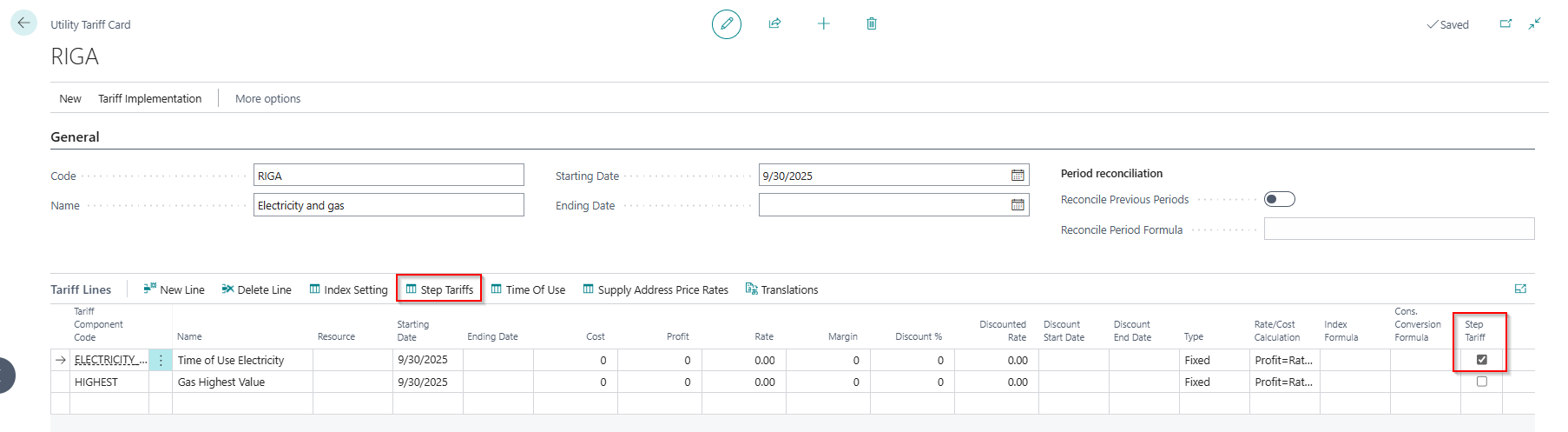
- Select the checkbox in the Step Tariff field of the tariff line you want to configure.
- Choose the Step Tariff action.
- Define the step tariff details on the Utility Step Tariffs SKY page. There are two ways to set up your rates on that page: Flat rate or Step Tariff.
Flat rate
Flat-rate pricing lets you set a single price for a specific quantity range. To enable flat rate pricing, select the Flat Rate checkbox on the Utility Step Tariffs SKY page.
For example, you can set a flat rate of $15 for consumption from 0 to 100 kWh. Once consumption reaches 100 kWh, the rate drops to 0.16 per additional kWh.
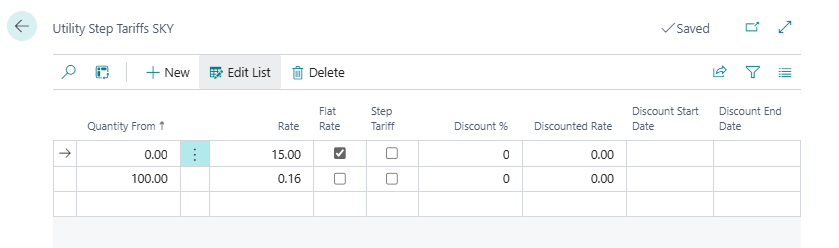
If the customer uses 1200 kWh units, the invoice contains two lines.
| Item | Qty | Unit of measure | Rate | Amount |
|---|---|---|---|---|
| Base Charge (covers 0–100 kWh) | 1 | — | $15.00 | $15.00 |
| Excess Usage (above 100 kWh) | 1100 | kWh | $0.16 | $176.00 |
| Total | $191.00 |
If the customer uses 90 kWh, they are charged only the Base charge flat rate of $15. The flat rate means the customer pays a fixed amount for consumption within the defined range, regardless of how much they actually consume.
Tip
You could achieve a similar effect by setting up several tariff lines and applying conditions to them. For each tariff line, you would need to specify the appropriate parameter in the Condition field on the Utility Tariff Component Card page. However, using step tariffs is more efficient and easier to manage.
Step Tariff not selected for any line
When the Step Tariff checkbox is cleared for all lines, SkyBill applies each rate to its corresponding consumption range. For example, to set up progressive pricing where rates increase with consumption, define the following rates:
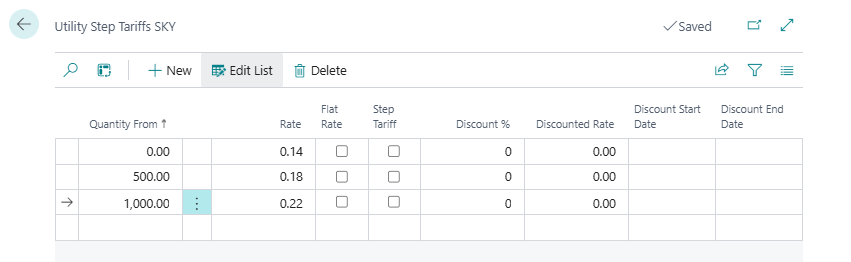
If the customer uses 1200 kWh, the invoice contains three lines.
| Item | Qty | Unit of measure | Rate | Amount |
|---|---|---|---|---|
| Block 1 (0–500 kWh) | 500 | kWh | $0.14 | $70.00 |
| Block 2 (501–1,000 kWh) | 500 | kWh | $0.18 | $90.00 |
| Block 3 (above 1,000 kWh) | 200 | kWh | $0.22 | $44.00 |
| Total | $204.00 |
Step Tariff selected for all lines
If you select the Step Tariff checkbox for all lines, SkyBill applies the rate from the last line (the last step) that matches the consumption level. For example, use the same rates and apply the step tariff to each line.
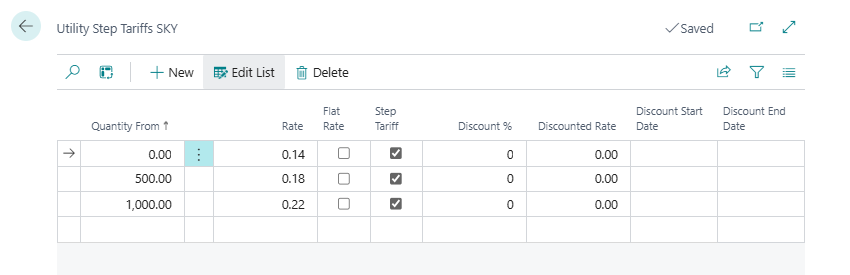
If the customer uses 1,200 kWh, the invoice contains only one line. SkyBill applies the same rate of 0.22 to all 1,200 kWh. The 0.22 rate applies to all customers who exceed 1,000 kWh of consumption in the billing period.
| Item | Qty | Unit of measure | Rate | Amount |
|---|---|---|---|---|
| Standard Rate (all consumption) | 1,200 | kWh | 0.22 | $264.00 |
| Total | $264.00 |
If the consumption were 900 kWh, the 0.18 rate would apply to the entire 900 kWh.
Discounts applied to the step tariffs
For each line on the Utility Step Tariffs SKY page, you can set up a discount. You can specify the discount by entering the values in either the Discount % or Discounted Rate field. Always use them with a time range specified in the Discount Start Date and Discount End Date fields.
Note
Discounts are not the third way to set up prices on the Utility Step Tariffs SKY page. They are an additional feature that can be applied to any line on the Utility Step Tariffs SKY page. Their purpose is to provide pricing flexibility by allowing temporary rate reductions. That's why the Discount Start Date and Discount End Date fields are essential for that functionality. You can use discounts with both flat-rate and step-tariff pricing methods.
Related information
Set up tariffs and pricing rules
Calculate, create, and send customer invoices
Design details
Define tariff components for billing
Time of use pricing
Work with Business Central